

Picture this. You open a code editor for the first time. The screen is blank. You have watched a few tutorials, but none of them match what you want to build. You type a line, get an error, and lose twenty minutes on a missing bracket.
Now picture a different start. You describe what you want in plain English. A tool writes the first draft of the code. You read it, run it, and ask why it works. The error that cost you twenty minutes now takes two.
That second picture is why so many people are talking about AI coding assistants. These tools do not replace the need to think. They change how fast a beginner can get from an idea to something that runs. They also change how much help is available at 2 a.m., when no teacher or friend is awake.
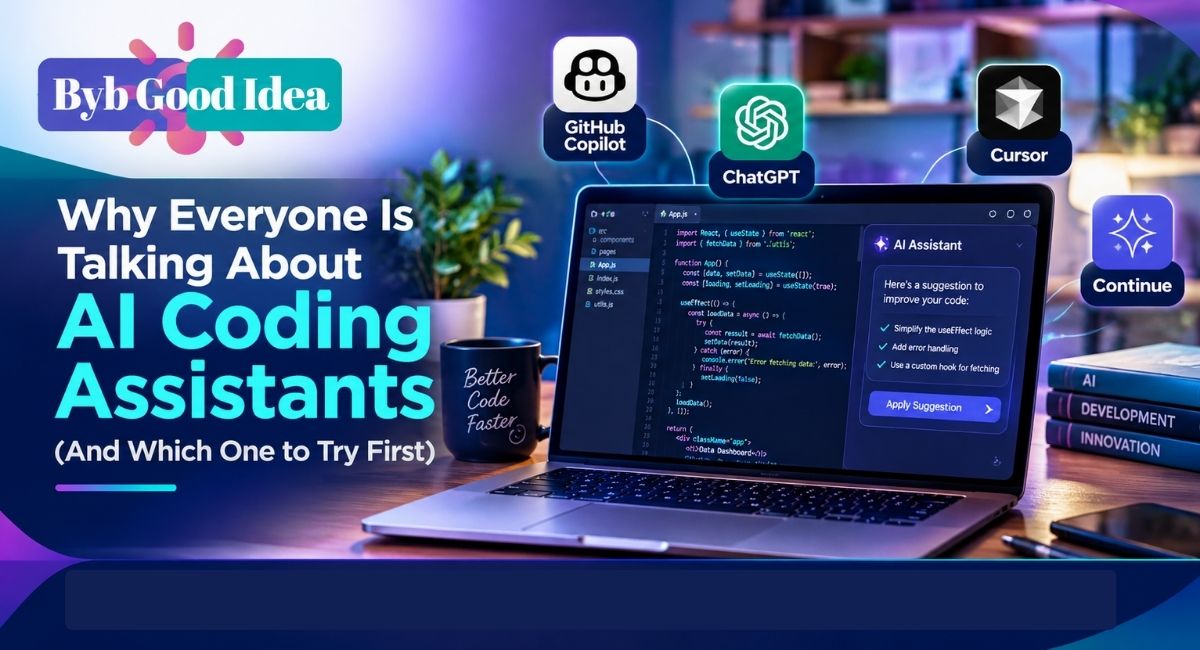
But there is a catch. The market is crowded, and the names blur together. GitHub Copilot, Claude Code, Cursor, ChatGPT and Replit all promise to help you write code. They work in very different ways. Pick the wrong one and you may feel lost. Pick the right one and your first month of coding can feel far less painful.
This guide gives you a clear path. You will see what these tools do, how they differ, and which one suits your situation. You will also get a simple plan for your first week. No hype, no jargon walls, and no promises that a tool will make you a developer overnight.
What Is an AI Coding Assistant?
An AI coding assistant is software that uses a large language model to help you write, read, fix and explain code. You give it instructions in natural language or start typing code. It responds with suggestions, full functions, explanations or edits.
Most tools fall into a few groups:
- Autocomplete helpers that suggest the next line or block as you type.
- Chat assistants that answer questions and write code in a conversation.
- AI code editors that build the assistant into the editor itself.
- Agent tools that can plan a task, edit several files and run commands for you.
The same product can fit more than one group. Cursor, for example, is an editor with chat and agent features. Claude Code works from the terminal and acts more like an agent. Copilot started as autocomplete and now includes chat and agent modes.
How an AI code generator works
An AI code generator is trained on large amounts of text and code. It learns patterns. When you ask for a function that sorts a list, it predicts what a good answer looks like based on those patterns. It does not run your code in its head. It does not truly know your project unless you show it.
This matters for beginners. The output can look confident and still be wrong. Good tools get it right most of the time on common tasks. They struggle more with unusual libraries, new versions of frameworks and large projects with many moving parts.
What these tools are not
They are not a replacement for knowing the basics. They are not a guarantee of working software. And they are not always up to date on the newest version of a library. Treat them like a fast, well-read helper who sometimes makes things up. You still check the work.
Why the Buzz Is Real
The attention is not just marketing. Three things changed at once.
First, the quality of the models improved. Early tools could finish a line of code. Current ones can write a working small program from a short description. They can also explain errors in plain language.
Second, the tools moved into places where people already work. You can use them inside Visual Studio Code, in a browser tab or in a terminal. You do not need a special setup to try one.
Third, free and low-cost plans appeared. A beginner can try several tools without paying anything. Plans and limits change often, so check each product page before you commit. That is true for every price and limit mentioned in this article.
The effect on beginners
Beginners often quit coding for one reason. They get stuck, and nobody helps. An AI assistant gives you a place to ask any question, as many times as you need. There is no embarrassment. You can ask what a variable is for the fifth time and get a patient answer.
That said, the same convenience can slow you down. If you paste every error into a chat and copy the fix, you may finish a project and still not know how it works. The tool is only as useful as the way you use it. We will come back to this.
If you already use AI for writing or planning, you have a head start. The habits carry over. Ask clear questions, give context and check the result. Our guide on how to use ChatGPT for everyday productivity covers those habits in a general setting, and they apply directly to code.
What Beginners Should Look For
Before you compare tools, decide what matters to you. Experienced developers care about speed and deep project knowledge. Beginners need other things.
Clear explanations
A good beginner tool explains its code. It should tell you what each part does without a lecture. If a tool only dumps code, you will not grow.
Low setup friction
The first hour matters. If you spend it fighting installers and settings, you may never write a line of code. Tools that run in a browser or install in a few clicks win here.
Safe mistakes
You will break things. A beginner tool should make it easy to undo changes, see what changed and try again. Version history and preview features help a lot.
Fair pricing
Most people do not want a monthly bill while they are still testing the idea. Look for a free tier that is useful, not just a teaser.
Room to grow
You do not want to switch tools every two months. Pick something that still works when your projects get bigger.
The Five Tools Beginners Ask About Most
Here is a plain look at each one. Remember that features change quickly. Use this as a map, then check the official pages for current details.
ChatGPT
ChatGPT, made by OpenAI, is a general chat assistant. It is not a code editor. You type a question, it replies with an answer and a code block. You copy the code into your own editor and run it.
Where it shines for beginners:
- It explains concepts in plain language.
- It handles a huge range of languages, from Python to HTML to SQL.
- You can ask it to rewrite an explanation in simpler words.
- The free plan lets you try it with no payment.
Where it falls short:
- It does not see your files unless you paste them in.
- Copying between the chat and your editor gets tiresome.
- You can end up trusting code you did not read.
ChatGPT is a good first stop if you want to learn to code with AI and you are not ready to install anything. It works like a tutor who is always available.
GitHub Copilot
GitHub Copilot, from GitHub and Microsoft, lives inside your editor. It is best known for inline suggestions. As you type, grey text appears that you can accept with a key press. It also has a chat panel and, in newer versions, agent features.
Where it shines:
- It fits into Visual Studio Code and other common editors.
- It feels natural. You code as usual and the tool nudges you.
- GitHub offers a free tier with monthly limits, plus paid plans. Students and teachers may qualify for extra access through GitHub Education.
Where it falls short:
- Suggestions can tempt you to accept code you do not understand.
- It works best when you already know a little about the language.
- You need to set up an editor first.
You can read the official GitHub Copilot documentation to see current features, plans and supported editors.
Cursor
Cursor is a code editor built around AI. It looks like Visual Studio Code, because it started from the same open-source base. The difference is that chat, edit and agent features sit at the center of the experience.
Where it shines:
- You can ask it to change code across several files.
- It shows you a clear view of what it plans to change before you accept.
- It can use your whole project as context.
Where it falls short:
- There are more features and menus than a first-timer needs.
- The free plan has limits, so heavy use may require a paid plan.
- It is easy to let the agent do too much without reading the result.
Cursor suits a beginner who has made a few small programs and now wants to build something larger.
Claude Code
Claude Code is a coding tool from Anthropic. It runs in your terminal and can also connect to some editors. You give it a task in plain English. It reads your project, proposes changes, edits files and can run commands, asking for your approval along the way.
Where it shines:
- It is strong at larger tasks that touch many files.
- It explains what it is doing as it works.
- It can help you set up a project, write tests and fix bugs.
Where it falls short:
- The terminal can feel intimidating on day one.
- It needs a paid Claude plan or API access, so it is not free to start.
- Its power can hide the small steps a beginner should see.
Claude Code is a better second or third tool than a first one. Once you know what a folder, a file and a command are, it becomes very useful.
Replit
Replit is a browser-based coding platform. You open a page, pick a language and start writing. There is nothing to install. It includes an AI assistant and an agent that can build small apps from a description, then host them online.
Where it shines:
- Zero setup. You start in seconds.
- You can run and share your project with a link.
- The agent can build a working prototype from a prompt.
Where it falls short:
- The agent can build things you do not understand.
- Free usage has limits, and paid features cost extra.
- Some projects outgrow the platform.
Replit is the easiest way to see your first project working in a browser. For many beginners, that quick win is what keeps them going.
A Quick Comparison
This table sums up the main differences. It is simplified, so use it for orientation, not as a final verdict.
| Tool | Type | Setup effort | Best for | Free option |
| ChatGPT | Chat assistant | Very low | Asking questions, getting explanations | Yes, with limits |
| GitHub Copilot | Editor plugin | Low to medium | Learning inside a real editor | Yes, with limits |
| Cursor | AI code editor | Medium | Building bigger projects | Yes, with limits |
| Claude Code | Terminal agent | Medium to high | Multi-file tasks and bug fixing | Requires paid access |
| Replit | Browser platform | Very low | Fast first projects, sharing | Yes, with limits |
Which One Should You Try First?
There is no single winner. The right pick depends on how you like to learn and what you want to make. Here are some common situations.
You have never written code
Start with ChatGPT or Replit. Both need almost no setup. With ChatGPT, you can ask basic questions and read simple examples. With Replit, you can type code and see results in the same window. Many beginners do both: ask ChatGPT to explain an idea, then try it in Replit.
If you are a student, our list of beginner-friendly AI tools for students can also help you choose tools that fit a school budget.
You have done a few tutorials
Try GitHub Copilot in Visual Studio Code. You already know some syntax. Copilot gives you suggestions while you write, so you stay in control. You also get used to a real editor, which is a skill you will need anyway.
You want to build a real project
Move to Cursor. It handles multi-file changes and shows you a clear view of what changes. Build something small, like a to-do app or a simple budgeting tool, and let it help with the parts you find hard.
You are comfortable with the terminal
Try Claude Code. If you already use the command line, it feels like working with a patient teammate. Ask it to explain a codebase, add a feature or write tests.
You only want a quick working prototype
Use Replit’s agent. Describe the app and see what you get. Then read the code. Treat the first draft as a learning sample, not a finished product.
How to Learn to Code With AI Without Losing the Skills
This is the part most guides skip. Tools can speed you up or make you lazy. The difference is in your habits.
Write first, ask second
Try to solve the problem yourself for ten minutes. Then ask the tool. You will remember the answer better, because you already felt the problem.
Ask for explanations, not only code
A simple prompt works well: “Explain this code line by line like I am a beginner.” Another one: “Why did you choose a loop here instead of a list comprehension?” These questions turn the tool into a teacher.
Read every line before you run it
If you cannot explain a line, ask about it. Do not paste code you do not understand into a project that matters. This habit alone protects you from most bad outcomes.
Type some code by hand
Copy and paste builds speed but not memory. Retype short pieces. It feels slow, and it works.
Break tasks into small steps
Do not ask for a whole app in one prompt. Ask for one feature at a time. Test each part. Small steps make errors easier to trace.
Keep a short notes file
Write down what you learned each day. One or two lines are enough. A note like “A function returns a value, and print only shows it” is valuable later.
Use structured learning too
AI is a great helper, but a course gives you order. A good course teaches concepts in the right sequence. Pair your assistant with one of the free online learning platforms for skill development so you have both structure and on-demand help.
A Realistic First Week Plan
You do not need a big plan. You need a small one you will actually follow. Here is a simple seven-day path using one or two tools.
Day 1: Pick a language and a goal. Python is a common choice for beginners because the syntax is clean. Set a tiny goal, such as a program that asks your name and greets you.
Day 2: Ask for the basics. Use ChatGPT to explain variables, strings and numbers. Ask for three short examples. Type them out and run them.
Day 3: Learn loops and conditions. Ask the tool to write practice exercises. Solve them without help first. Then check your answers with the assistant.
Day 4: Write a small script. Try a tip calculator or a simple unit converter. Ask the assistant to review your code and point out mistakes.
Day 5: Fix an error on purpose. Break your own code. Read the error message. Guess the cause. Then ask the tool to confirm. This builds debugging skills, which matter more than writing code.
Day 6: Move into a real editor. Install Visual Studio Code and try GitHub Copilot’s free tier, or try Cursor. Open your earlier scripts and improve them.
Day 7: Build a tiny project. A to-do list in the terminal is enough. Ask the assistant for help with each step. Save it, and write down what you learned.
By the end of the week, you will not be a developer. You will have a working habit, a few small programs and a feel for how the tools behave. That is a solid start.
Common Mistakes Beginners Make With AI Coding Tools
Most problems come from a handful of habits.
Accepting code without reading it
This is the biggest one. It leads to bugs you cannot trace and a project you cannot change.
Vague prompts
“Make me an app” gives you a vague result. “Write a Python function that takes a list of prices and returns the total with 8 percent tax” gives you something useful. Say what the input is, what the output should be and which language to use.
Skipping the basics
Some beginners jump straight to agents. They get a working app and no idea how it runs. When something breaks, they are stuck. Learn variables, functions, loops and basic data structures first.
Pasting private data into a chat
Never paste passwords, API keys or personal data into an AI tool. If a key leaks, replace it right away. Good account habits matter here. Our step-by-step guide to secure your online accounts explains how to protect the logins you use for your tools and projects.
Trusting outdated answers
Libraries change. A tool may suggest a function that no longer exists. When something fails, check the official documentation. It is the final word on how a library works.
Switching tools every day
Trying five tools in a week is fine. Switching every day is not. Pick one main tool and give it two weeks before you judge it.
Safety, Privacy and Honest Limits
AI coding tools raise a few fair concerns. You should know them before you start.
Accuracy. These tools can produce code that looks correct and is not. Always test. Run the code with sample inputs, including odd ones.
Security. Generated code may contain weak spots, such as poor input checks. If you build anything that handles user data, have an experienced person review it.
Privacy. Read the data policy of each tool. Some plans may use your prompts to improve their models, and settings often let you opt out. Check before you paste anything sensitive.
Licensing. Generated code may resemble public code. Most beginner projects are not at risk, but if you plan to sell software, read the terms of the tool and talk to a legal expert.
Dependence. Over time, lean on the tool less for things you already know. Use it for the next step in your growth, not the last one.
None of these are reasons to avoid the tools. They are reasons to use them with care.
How AI Fits Into a Wider Set of Daily Tools
Coding is only one place where AI helps. Many people use it for writing, planning, research and task tracking too. If you want a broader view, our roundup of top AI tools that make your daily tasks easier shows how these tools fit into normal routines.
You may also like to pair your coding tool with a simple workflow setup. A distraction-free editor, a notes app and a task list go a long way. The list of best free productivity apps is a good place to start.
What the Future Looks Like for Beginners
Two trends are worth watching.
The first is more capable agents. Tools can already plan a task, edit files and run tests. They will keep getting better at long, multi-step work. For a beginner, that means more help, and also more need to check the result.
The second is better teaching features. Some tools now aim to guide you rather than give answers. Expect more modes that ask you questions, give hints and hold back the full solution until you try.
What does not change is the value of fundamentals. People who understand how code works get far better results from any tool. They write sharper prompts, spot errors faster and make better design choices. Think of the AI as a power tool. It is great in skilled hands, and it still needs a person who knows what to build.
Final Thoughts and Your Next Step
AI coding assistants have earned their attention. They lower the barrier to starting, give you instant feedback and make small projects feel doable. But they work best when you stay in charge. Read the code, ask why, and build small things often.
If you want a simple starting point, here it is. Open ChatGPT or Replit today. Pick Python. Ask for a tiny exercise, type the answer by hand and run it. Tomorrow, add one more small step. In a week, try GitHub Copilot or Cursor inside a real editor. In a month, you will know which tool fits you.
For more practical guides on tech tools, productivity and smart everyday choices, keep reading at BYB Good Idea. We publish clear, tested advice so you can pick the right tool the first time and spend your time on what matters: building something of your own.